
3. Commit change

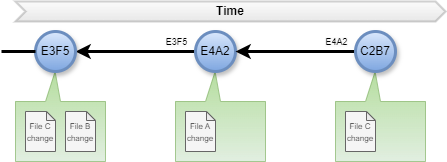
git commit is a fundamental command in Git for capturing snapshots of your project’s changes and maintaining a version history.

  • Creates a permanent record of your project’s state at a specific point in time.
  • Allows you to revert back to previous versions if needed.
  • Facilitates collaboration by tracking individual changes and who made them.
  • Provides a clear history of the project’s evolution.

How it works:

  1. Changes in Working Directory: You modify files in your project using a code editor or IDE. These changes initially exist only in your working directory, which is your local development environment.
  2. Staging Changes (Using git add): Git doesn’t automatically track changes. You need to explicitly tell it which modified files you want to include in the next commit using git add.
    • Syntax: git add <filename(s)>
      • Replace <filename(s)> with the specific files you want to commit. You can use wildcards (e.g., git add * for all modified files) or patterns (e.g., git add src/*.cpp for all .cpp files in the src directory).
  3. Creating the Commit (Using git commit): Once you’ve staged the desired changes, use git commit to create a snapshot.
    • Syntax: git commit
      • Git typically opens your default text editor for you to write a commit message.
  4. Commit Message: This message is crucial. It should be concise, clear, and informative, summarizing what changes were made and why. Good commit messages help you and others understand the project’s history.

Note that git commit does not commit changes to remote repository, it just first step.

Additional Notes:

  • Use git status to see the status of your changes (modified, staged, untracked).
  • If you need to modify the staged changes before committing, use commands like git rm (remove from staging) or git checkout (revert changes in working directory files).
  • You can skip staging with git commit -a -m "message" to directly commit all modified and tracked files, but it’s generally recommended to be selective with staging for better control.

Update remote repository

The command git push origin is a vital for sharing your local project’s changes with a remote repository, typically hosted on platforms like GitHub, GitLab, or a self-managed server.

It’s purpose:

  • Uploads your local changes (commits) to the remote repository named origin. This is the conventional name for the remote, but you could have used a different name during setup (e.g., upstream, backup).
  • Makes your changes accessible to collaborators or for backup purposes.

What happens when you run git push origin:

  1. Verification: Git first verifies that you have a connection established with the remote repository origin.
  2. Authentication: It attempts to authenticate you with the remote repository using your credentials (username and password or SSH key). You’ll need to have set up these credentials beforehand, typically following the instructions provided by your hosting platform.
  3. Pushing Changes: If authentication is successful, Git starts uploading your local commits that haven’t already been pushed to the remote repository origin. It typically pushes them to a branch on the remote repository with the same name as your current local branch.

Alternatively you can use git push origin [branch] to push file of a local branch.

Important Considerations:

  • Existing Remote Branch: If a branch already exists on the remote repository origin, your push operation will typically attempt to:
    • Fast-forward merge: This is the simplest scenario where your local branch is ahead of the remote branch with new commits. Git seamlessly integrates your commits onto the remote branch, essentially extending its history.
    • Merge conflict: If there are conflicts (i.e., changes made to the same lines of code in both the remote and your local branch), the push operation will be halted, and you’ll need to resolve the conflicts manually before retrying.
  • New Remote Branch: If there’s no branch on the remote repository yet, your push operation will create a new branch named branch on origin and push your local commits to it.

Alternatives and Best Practices:

  • It’s generally a good idea to be sure your local branch is up-to-date with the remote branch before pushing using git pull origin [branch] to avoid conflicts.
  • You can also use more specific branch names for pushing to different branches on the remote repository. For example, git push origin feature/new-feature would push your local feature/new-feature branch to the remote origin repository.

Example..

$ touch file2.txt
$ git add file2.txt
$ git commit -m "adding file2.txt"
[b2 5245dc0] adding file2.txt
 1 file changed, 0 insertions(+), 0 deletions(-)
 create mode 100644 file2.txt
$ git push origin b2
Branch 'b2' set up to track remote branch 'b2' from 'origin'.
Everything up-to-date
2. Git project

The git init command is first step in using Git in your project. It creates a new Git repository, which is a special directory that stores snapshots of your project’s files and tracks changes over time..

Install Git

To start use git you first need to have it installed.
You find the latest instructions for that here: https://git-scm.com/downloads

How to use it:

  1. Open your terminal or command prompt. This is where you’ll type Git commands.
  2. Navigate to your project directory. Use the cd command to change directories. For example, if your project is in a folder named demo on your desktop, you might type:
  3. Initialize project with: git init
    This creates a hidden folder named .git inside your project directory and in this folder all the Git metadata is stored for your repository.
    A new Git branch named main (or sometimes master, depending on your Git configuration) is created by default. Branches are essentially pointers to specific versions (commits) in your Git history. The main branch initially points to an empty commit.
  4. Add repo from where to pull code from (and later push changes to):
    git remote add origin <address>
    This command establishes a connection between your local Git repository (the one on your computer) and a remote repository (typically hosted on a platform like GitHub, GitLab, or a self-hosted server). By creating this link, you enable actions like:
    • Pushing your local commits (changes) to the remote repository for sharing, collaboration, or backup.
    • Pulling down updates and changes made by others in the remote repository to keep your local copy in sync.
    • git remote: This part of the command tells Git that you’re working with remotes, which are external repositories.
      • add: This keyword instructs Git to add a new remote connection.
      • origin: This is a common naming convention for the remote repository. You can use a different name if you prefer (e.g., upstream, backup), but origin is widely recognized.
      • <url>: This is the placeholder for the actual URL of the remote repository. You’ll need to replace it with the specific URL you obtained from the remote hosting platform or server administrator.
    • After adding the remote:
      You can verify the connection using git remote -v. This should list the remote named origin and its URL.
    • Important notes:
      git remote add origin only creates the connection. You’ll still need to set up authentication (username and password or SSH key) to push or pull from the remote repository. Refer to the documentation of your hosting platform for specific instructions.
      This command is typically used only once in a project to establish the initial remote connection. Subsequent pushes and pulls use other commands like git push and git pull.
  5. To pull all files from main branch execute: git pull origin main
    This will keeps your local project directory up-to-date with the latest changes from a remote repository.
    • git pull: This is the main command that initiates the pull operation. It combines two essential Git actions:
      • git fetch: This retrieves the latest changes from the remote repository (usually named origin) but doesn’t directly integrate them into your local copy.
      • git merge: This integrates (or merges) the fetched changes from the remote branch (main in this case) into your current local branch.
        If the fetched changes from origin/main (the remote main branch) don’t conflict with your current local branch, Git seamlessly merges them into your local branch. This creates a new commit in your local Git history that incorporates the updates from the remote repository.
    • origin: This refers to the name of the remote repository you’ve established a connection with using git remote add origin <url>. It’s a convention, but you could have used a different name during setup.
    • main: This specifies the specific branch in the remote repository that you want to pull changes from. In modern Git workflows, main is the commonly used name for the default branch, but it could be named master in older projects.
    • Conflict Resolution: However, if there are conflicts (i.e., changes made to the same line of code in both the remote and your local branch), Git will halt the merge process and present you with merge conflict markers in the affected files. You’ll then need to manually resolve these conflicts by editing the files and choosing the desired version of the code before attempting another pull.

Example…

1. Why Git

Have you ever worked on a project and accidentally overwritten important changes? Or maybe you’ve wished you could go back in time and see how your code evolved?
Well, Git may be the answer!

What is Git?

Git is a free and open-source version control system that allows you to track changes in your code or any project files over time. It’s like a time machine for your project, letting you revert to previous versions, see the history of changes, and collaborate effectively with others.

Here are some reasons why Git is awesome:

  • Tracks Changes: Git keeps a detailed log of every modification made to your files. You can see who made the changes, when they were made, and even revert back to any previous version if needed.
  • Collaboration Made Easy: Multiple people can work on the same project simultaneously without stepping on each other’s toes. Git helps merge changes from different contributors and keeps track of everything.
  • Safety Net: Git acts as a safety net. If you mess something up, you can easily revert to a previous working version. No more “oops” moments!
  • Branching Power: Git allows you to create different branches for experimenting with new features or fixing bugs. This way, you don’t risk breaking the main project while working on something new.

How it works

Git might seem like a complex system at first, but it boils down to a core concept: taking snapshots of your project at different points in time and efficiently tracking changes between them.

Git doesn’t directly modify your files. Instead, it keeps track of them in three main states:

  • Modified: This means you’ve made changes to a file, but you haven’t saved them permanently in Git’s history.
  • Staged: In this state, you’ve explicitly told Git to include the specific changes you made in the next permanent snapshot.
  • Committed: This is the final state. Once you commit your staged changes, Git creates a permanent record of your project’s state at that point, along with a message you provide describing the changes.

Creating a Repository

A Git repository (repo) is essentially a folder that holds all the information about your project’s versions. To start using Git, you’ll initialize a repo in your project directory using the git init command. This creates a hidden folder called .git where Git stores all its magic.

Making Commits: Capturing Project History

As you work on your project and make changes, Git keeps track of them in the “modified” state. When you’re ready to save those changes permanently, you use the git add command to stage the specific files or changes you want to include in the next commit. Finally, you use git commit with a descriptive message to create a snapshot of your project’s state at that point in time. This commit becomes part of your project’s history.

Branching: Experimenting Without Disruption

Git’s branching feature allows you to create temporary working directories (branches) from your main project codebase (usually called the “master” branch). This lets you experiment with new features or bug fixes in isolation without affecting the main project. You can create branches using git branch <branch_name>. Once you’re happy with your changes in a branch, you can merge them back into the main branch using git merge <branch_name>.

Collaboration: Sharing and Merging Changes

Git is a powerful tool for collaboration. If you’re working with others, you can share your Git repository on a hosting platform like GitHub or GitLab. This allows everyone to clone (copy) the repository to their machines, work on their branches, and eventually push (upload) their changes back to the shared repository. When multiple developers contribute changes, Git helps merge their branches into the main branch, resolving any conflicts that might arise if different people edited the same files.

Unveiling the Past: Exploring Project History

With Git, you can easily travel back in time to see older versions of your project. You can use commands like git log to view the commit history, showing you every snapshot captured along the way with their commit messages. You can even revert to a previous working version using git checkout <commit_hash> if needed.