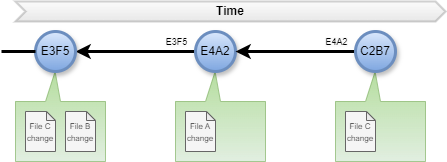
Have you ever worked on a project and accidentally overwritten important changes? Or maybe you’ve wished you could go back in time and see how your code evolved?
Well, Git may be the answer!
What is Git?
Git is a free and open-source version control system that allows you to track changes in your code or any project files over time. It’s like a time machine for your project, letting you revert to previous versions, see the history of changes, and collaborate effectively with others.
Here are some reasons why Git is awesome:
- Tracks Changes: Git keeps a detailed log of every modification made to your files. You can see who made the changes, when they were made, and even revert back to any previous version if needed.
- Collaboration Made Easy: Multiple people can work on the same project simultaneously without stepping on each other’s toes. Git helps merge changes from different contributors and keeps track of everything.
- Safety Net: Git acts as a safety net. If you mess something up, you can easily revert to a previous working version. No more “oops” moments!
- Branching Power: Git allows you to create different branches for experimenting with new features or fixing bugs. This way, you don’t risk breaking the main project while working on something new.
How it works
Git might seem like a complex system at first, but it boils down to a core concept: taking snapshots of your project at different points in time and efficiently tracking changes between them.
Git doesn’t directly modify your files. Instead, it keeps track of them in three main states:
- Modified: This means you’ve made changes to a file, but you haven’t saved them permanently in Git’s history.
- Staged: In this state, you’ve explicitly told Git to include the specific changes you made in the next permanent snapshot.
- Committed: This is the final state. Once you commit your staged changes, Git creates a permanent record of your project’s state at that point, along with a message you provide describing the changes.
Creating a Repository
A Git repository (repo) is essentially a folder that holds all the information about your project’s versions. To start using Git, you’ll initialize a repo in your project directory using the git init command. This creates a hidden folder called .git where Git stores all its magic.
Making Commits: Capturing Project History
As you work on your project and make changes, Git keeps track of them in the “modified” state. When you’re ready to save those changes permanently, you use the git add command to stage the specific files or changes you want to include in the next commit. Finally, you use git commit with a descriptive message to create a snapshot of your project’s state at that point in time. This commit becomes part of your project’s history.
Branching: Experimenting Without Disruption
Git’s branching feature allows you to create temporary working directories (branches) from your main project codebase (usually called the “master” branch). This lets you experiment with new features or bug fixes in isolation without affecting the main project. You can create branches using git branch <branch_name>. Once you’re happy with your changes in a branch, you can merge them back into the main branch using git merge <branch_name>.
Collaboration: Sharing and Merging Changes
Git is a powerful tool for collaboration. If you’re working with others, you can share your Git repository on a hosting platform like GitHub or GitLab. This allows everyone to clone (copy) the repository to their machines, work on their branches, and eventually push (upload) their changes back to the shared repository. When multiple developers contribute changes, Git helps merge their branches into the main branch, resolving any conflicts that might arise if different people edited the same files.
Unveiling the Past: Exploring Project History
With Git, you can easily travel back in time to see older versions of your project. You can use commands like git log to view the commit history, showing you every snapshot captured along the way with their commit messages. You can even revert to a previous working version using git checkout <commit_hash> if needed.