
Cross site DNS resolve with UDM

Do you have two sites with a UDM on each with a tunnel between, and wish you could resolve DNS lookup between sites, here is how you can achieve that.

This guide walks you through configuring DNS resolution between two Ubiquiti Dream Machine (UDM) sites connected by a tunnel. Dnsmasq, the built-in DNS server on UDMs, offers powerful options to achieve this.

Challenge: Subdomain and Local Resolution

For this example, we’ll assume the secondary site is configured as a subdomain (ext.home) within the primary domain (.home). This setup introduces a complication: while we want to forward most DNS requests to the other UDM, we also want local machines on the secondary site to be resolved by its local UDM.
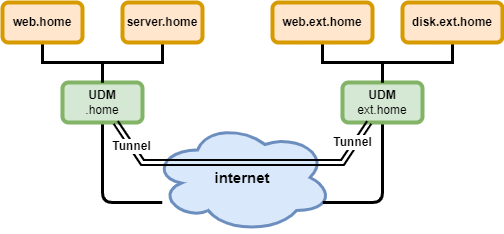
Solution: Leveraging the server parameter

Dnsmasq’s server parameter allows us to specify how to handle DNS requests based on domains. Here’s a breakdown of its syntax:

server=[/[<domain>]/[domain/]][<server>[#<port>]][@<interface>][@<soruce-ip>][@[#<port>]]
  • /domain/: Matches DNS requests for this domain (e.g., ext.home)
  • <server>: IP address of the DNS server to forward requests to
  • #: Denotes the UDM itself

Primary UDM Configuration (Simple Forwarding)

For the primary UDM (.home site), we simply add this line:

server=/ext.home/192.168.1.1

This instructs Dnsmasq to forward all DNS requests for ext.home to the secondary UDM (IP address 192.168.1.1).

Secondary UDM Configuration (Forwarding with Local Resolution)

The secondary UDM (ext.home site) requires a two-step approach to full these criterias:

  • Resolve Local Machines: We’ll configure Dnsmasq to handle DNS resolution for local machines on the secondary site.
  • Forward External Requests: We’ll add a similar line to forward all requests except those for ext.home to the primary UDM.

    Configuration

    As mentioned before, we need to tell the secondary UDM (ext.home) to forward all internal DNS requests except those for its own domain (ext.home) to the primary UDM. We can achieve this using the server parameter in Dnsmasq.

    Here’s the specific configuration line you need to add:

    server=/ext.home/#
    server=/*.home/192.168.0.1

    Explanation:
    # This symbol represents the UDM itself.
    *.home collects all request for domain home, except the ones fetch by the previous configuration line.

    Now we need to configure the secondary UDM to handle DNS resolution for local machines on the ext.home network. Dnsmasq can handle this functionality itself. You typically don’t need to add any specific lines for this purpose, but it’s important to understand how it works.

    By default, Dnsmasq automatically manages and resolves hostnames for devices on the same network it’s running on. So, any devices connected to the secondary UDM’s local network (ext.home) will have their DNS requests resolved by the secondary UDM itself. This ensures proper resolution for local machines within the secondary UDM’s site.

    Implementation example

    If you already created the customized script explain in the previous post, you can just extend it with the bold text. If you have not read previous post read it and the below gets more understandable…

    Primary UDM file (my_dns_fix)

    Secondary UDM file (my_dns_fix)

    Custom DNS entries in Unifi UDM

    Do you own a Unifi UDM and feel that the builtin DNS lacks some features?

    The Ubiquiti Dream Machine (UDM) utilizes Dnsmasq, a popular lightweight DHCP and caching DNS server. Despite its compact size, Dnsmasq is surprisingly versatile and can handle many advanced functions.

    This guide will demonstrate a simple hack to enable wildcard support for your internal web server using Dnsmasq. However, the possibilities for customization extend far beyond this example.

    Prerequisites:

    • Familiarity with SSH access to your UDM
    • Basic understanding of Linux commands and file editing in the terminal

    Creating a Persistent Bash Script

    We’ll create a small Bash script within the UDM and store it in the /root directory. This location is chosen because files stored here typically persist through UDM updates, avoiding the need for frequent manual intervention. While alternative solutions exist, they might be more complex than necessary for our purposes.

    UniFi releases updates a few times a year. With this frequency, any manual steps beyond a simple SSH connection and script execution could become cumbersome. This script-based approach simplifies the process.

    Dnsmasq Configuration in UDM

    Don’t Edit Existing Files!

    The UDM stores running Dnsmasq configurations in /run/dnsmasq.conf.d. These files are automatically updated when your UDM setup changes (e.g., adding a new device), wiping away any manual modifications.

    Adding Custom Configurations:

    However, you can add new files to this directory for custom settings. By naming them appropriately, Dnsmasq will recognize and utilize them.

    Example: Wildcard Support for Internal Web Server

    This example demonstrates adding wildcard support for an internal web server named “web.home” (previously configured through UDM’s standard process). The goal is to enable domain prefixes like “www” before “web.home”.

    We’ll achieve this by adding a CNAME configuration to Dnsmasq. Additionally, we need to inform Dnsmasq that it acts as the authoritative server for the “.home” top-level domain and the “web.home” zone. The following example demonstrates these configurations with explanations for each line.

    So, in /root folder of my UDM a create a file (example: my_dns_fix) and add content as above.
    Make file executable (chmod u+x my_dns_fix) and execute it.
    So, now Dnsmasq will resolve web.home with any prefix (example www.web.home) to same address as web.home, and it would actually resolve any prefix to web.home as it now configured with wildcard support.

    TIP!
    If something don’t work as expected…
    Remove conf file: rm /run/dnsmasq.conf.d/my_dns_fix.conf
    and execute pkill -9 dnsmasq to reload configuration without your changes.
    (You can also do as I have done… create script with what do what for you. It can be a bit tricky to know what you are doing if UDM write a error message every second or so)

    Summary

    So far my custom script have survived all unifi updates for almost two years. And only after some updates I have had to ssh UDM and re-executed script.
    I have extended it work with an UDM in second setup with tunnel between, so dns lookup between sites also works… that I will describe in a later post.

    Top-level domain
    .home is one of the top-level domain that is define in RFC6762 that you can use for your internal network.
    Other reserved top-level domain that you can use for internal networking are: intranet, internal, private, corp and lan
    https://www.rfc-editor.org/rfc/rfc6762#appendix-G